/* Getting Started */
Installation Guide
Step-by-step instructions to download, install, and set up the Orchard music client on Windows, Linux, and Android.
Welcome to Orchard! This guide will help you install the desktop music client on Windows or Linux, as well as the Orchard Connect companion application on your Android device.
Windows Installation
Orchard is distributed as a standard setup executable for Windows.
- Download the installer: Get the latest
Orchard <version>.exefrom the downloads portal. - Launch the setup: Double-click the downloaded executable to start the installation.
⚠️ Windows Defender SmartScreen Notice
Because Orchard is a self-published project and is not signed with an expensive commercial EV certificate, Windows Defender SmartScreen may display a warning stating that it “protected your PC” when you launch the installer. (im not paying microsoft 120$+ a year for an EV cert)
To complete the installation:
- Click More info on the alert window.
- Click the Run anyway button that appears. (why is this hidden?)
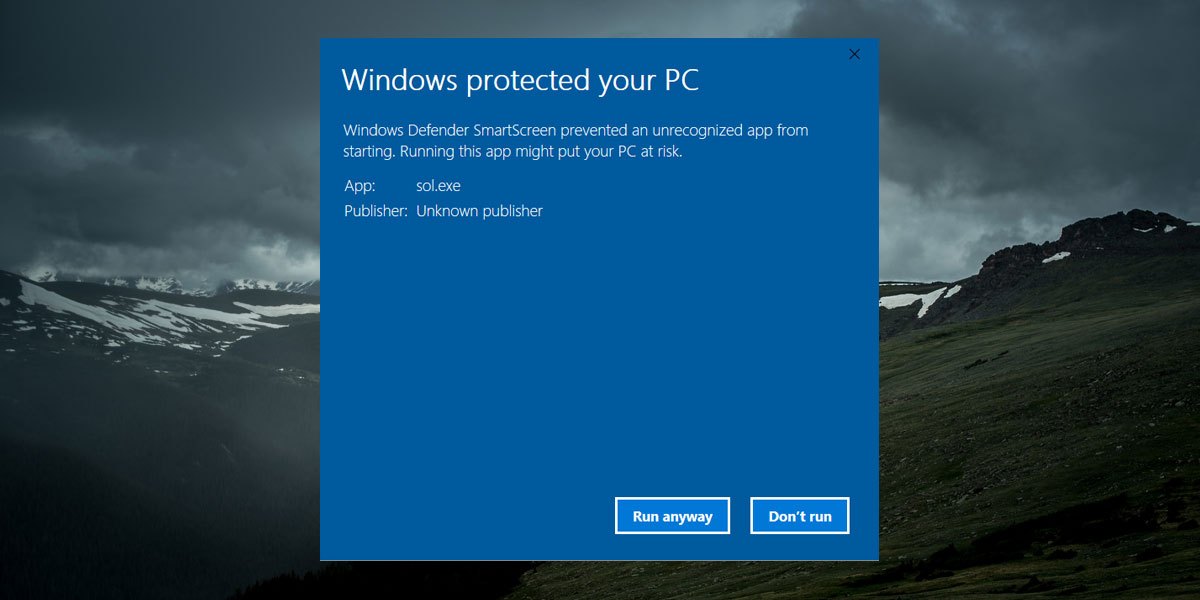
Click "More info" to display the "Run anyway" option.
Once accepted, Orchard will install and launch automatically.
Linux Installation
Orchard is packaged in several native and portable Linux formats to support most major distributions.
1. AppImage (Portable)
The AppImage format is a single executable file that runs on almost any distribution.
- Download the
Orchard-<version>.AppImage. - Open a terminal in your download folder and make the file executable:
chmod +x Orchard-*.AppImage - Double-click the file to launch it, or execute it from the terminal:
./Orchard-*.AppImage
2. Debian / Ubuntu (.deb)
For Debian, Ubuntu, Linux Mint, Pop!_OS, and other derivatives:
sudo apt update
sudo apt install ./orchardv2_*_amd64.deb
3. Fedora / RHEL / SUSE (.rpm)
For Fedora, CentOS, RHEL, or OpenSUSE:
sudo dnf install ./orchardv2-*.x86_64.rpm4. Arch Linux (.pkg.tar.zst)
For Arch Linux, Manjaro, or EndeavourOS:
sudo pacman -U orchard-*-x86_64.pkg.tar.zstAndroid (Orchard Connect)
Orchard Connect is a companion app that lets you control the playback, manage your queue, and view synchronized lyrics from your phone.
- Download the APK: Fetch the latest
Orchard-Connect-<version>.apkto your Android device. - Allow Installation: If prompted by your browser or file manager, enable “Install unknown apps” or “Install from unknown sources” for that application.
- Run Installation: Open the downloaded APK and select Install.
- Launch: Open Orchard Connect and proceed to pair it with your desktop client. (See the upcoming Orchard Connect Pairing guide for details.)