/* Getting Started */
Welcome Setup
Guide on signing in and configuring immersive backgrounds, crossfade mode, and phone pairing on first launch.
When you open Orchard for the first time, you will be greeted by the Welcome Setup screen. This wizard helps you link your account and configure the core playback and display features of the client.
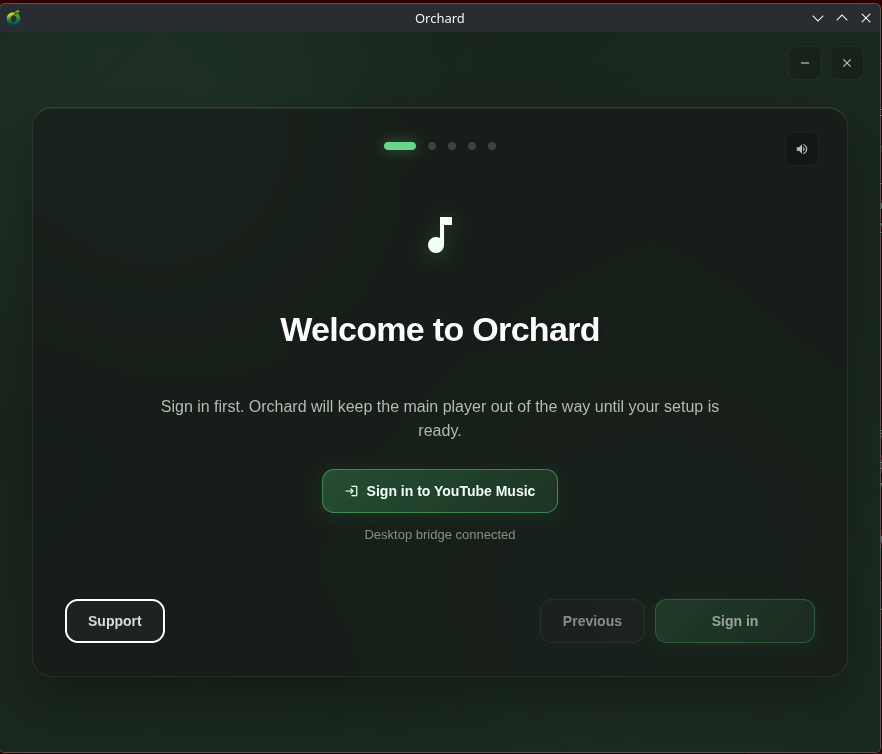
The welcome wizard guides you through the initial configuration steps.
Here is what you can configure during the welcome walkthrough:
1. Account Sign-In
Connect Orchard to your YouTube Music account. The app sets up a desktop bridge and opens an embedded browser session. Once the YouTube Music home page loads, you can safely close the sign-in window (it does not currently close automatically). Your library, custom playlists, and recommendations will load in the client automatically.
2. Artwork Backgrounds (Immersive Mode)
- Immersive Backgrounds: Toggle whether Orchard dynamically tints the application backdrop using colors extracted from the active album artwork.
- Background Motion: Choose the motion profile for the immersive backgrounds (e.g., animated shifts or static blends).
3. Playback Tuning & Crossfade
Configure how Orchard moves between songs:
- Crossfade Modes:
- Smart: Automatically disables crossfading on live albums, spoken-word tracks, or quiet-ending songs to avoid awkward transitions.
- Fixed: Applies a simple, standard blend between the end of one song and the start of the next.
- Off: Keeps songs completely separate.
- Crossfade Duration: Set the transition overlap duration (from 1 to 12 seconds).
- Autoplay: Toggle whether Orchard automatically appends similar tracks to your queue when your active list finishes.
- Automatic EQ: Enable or disable dynamic leveling and automated equalizer adjustments powered by the Orchard Audio Engine based on the track’s genre and frequency signature.
4. Stay Connected & Pairing
- Discord Rich Presence: Share your active song, duration, and cover art on your Discord profile.
- Phone Pairing (Orchard Connect): Generates a local network QR code. Scan this QR code with the Orchard Connect Android app to pair your phone and control playback remotely.