Welcome Setup
Guide on signing in and configuring immersive backgrounds, crossfade mode, and phone pairing on first launch.
When you open Orchard for the first time, you will be greeted by the Welcome Setup screen. This wizard helps you link your account and configure the core playback and display features of the client.
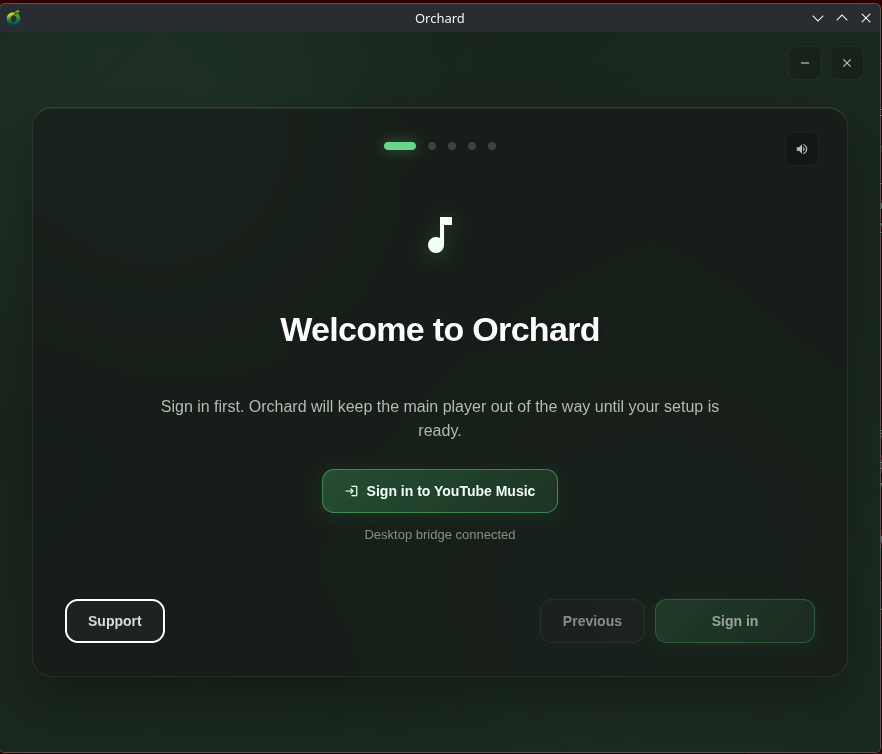
The welcome wizard guides you through the initial configuration steps.
Here is what you can configure during the welcome walkthrough:
1. Account Sign-In
Connect Orchard to your YouTube Music account. The app sets up a desktop bridge and opens an embedded browser session. Once the YouTube Music home page loads, you can safely close the sign-in window (it does not currently close automatically). Your library, custom playlists, and recommendations will load in the client automatically.
2. Artwork Backgrounds (Immersive Mode)
- Immersive Backgrounds: Toggle whether Orchard dynamically tints the application backdrop using colors extracted from the active album artwork.
- Background Motion: Choose the motion profile for the immersive backgrounds (e.g., animated shifts or static blends).
3. Playback Tuning & Crossfade
Configure how Orchard moves between songs:
- Crossfade Modes:
- Smart: Analyzes both tracks ahead of time and beat-matches the transition where the evidence supports it, aligning the two grids to a shared downbeat. Where it does not, it steps down to a simpler blend rather than forcing a beat match onto unreliable data, which is also how live albums, spoken-word tracks, and quiet-ending songs avoid awkward transitions. See Smart Crossfade.
- Fixed: Applies a simple, standard blend between the end of one song and the start of the next.
- Off: Keeps songs completely separate.
- Crossfade Duration: Set the transition overlap duration (from 1 to 12 seconds). In Smart mode this acts as a rail rather than the primary control, since Smart mode measures overlaps in beats.
- Autoplay: Toggle whether Orchard automatically appends similar tracks to your queue when your active list finishes.
- Automatic EQ: Enable or disable dynamic leveling and automated equalizer adjustments powered by the Orchard Audio Engine based on the track’s genre and frequency signature. See Audio Engine.
4. Stay Connected & Pairing
- Discord Rich Presence: Share your active song, duration, and cover art on your Discord profile.
- Phone Pairing (Orchard Connect): Generates a local network QR code. Scan it with Orchard Mobile to pair your phone, then approve the request on the desktop. Once paired you can hand playback between the two devices in either direction. Both devices need to be on the same network. See Orchard Connect.
After the walkthrough
Everything here can be changed later, and there is a good deal more that the wizard does not cover. The Settings Reference documents every option with its default, and Troubleshooting covers what to do when something misbehaves.
One thing worth knowing early: age-restricted songs, typically those with profanity in the title, require a signed-in session. Orchard plays them where most YouTube Music clients cannot. See Explicit and Age-Restricted Tracks.